> For the complete documentation index, see [llms.txt](https://docs.marpledata.com/docs/llms.txt). Markdown versions of documentation pages are available by appending `.md` to page URLs; this page is available as [Markdown](https://docs.marpledata.com/docs/marple-db/datastreams.md).
# Datastreams
A datastream is a structured way to import your data into Marple DB.
In the example setup below, there are three datastreams:
1. **Simulation data:** for importing MATLAB files
2. **Heat measurements**: for zipped CSV files
3. **Car data**: for MDF files
Each of these datastreams contains different files, and has a different configuration.
## Importing data
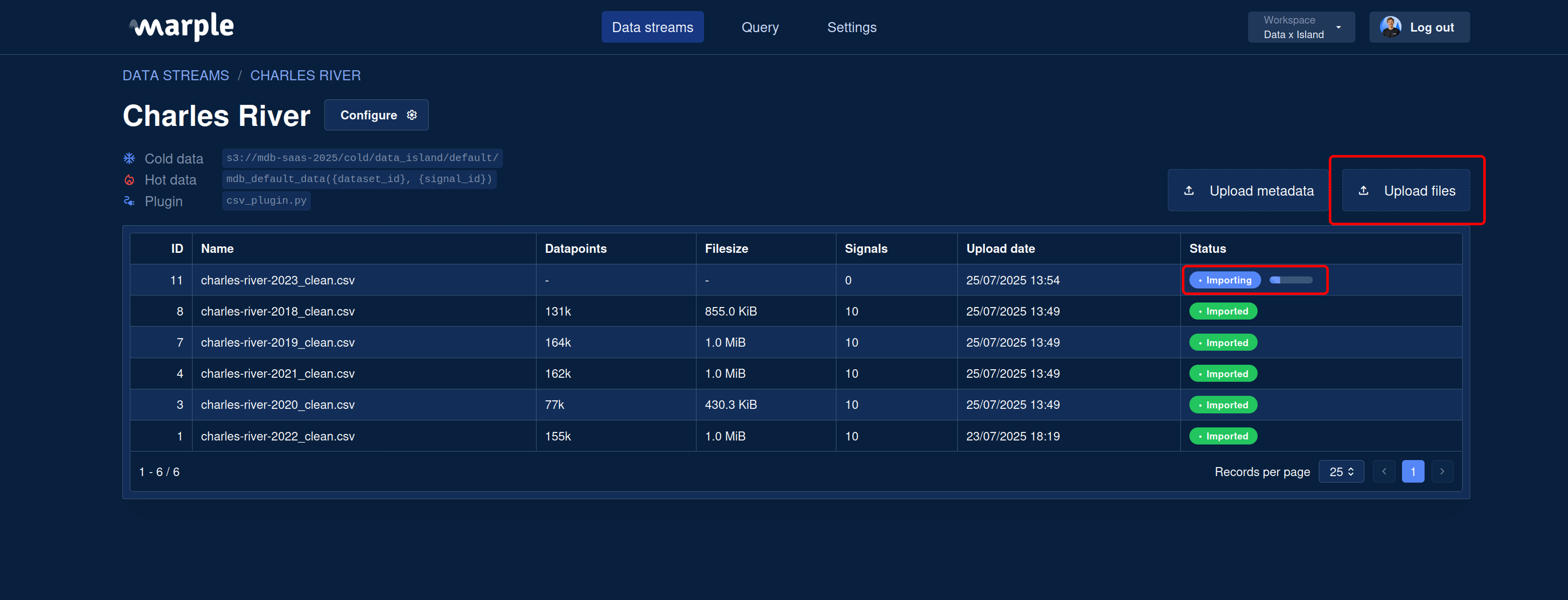
Upload one or multiple files by
* Clicking "Upload Files"
* or by drag and dropping them on the "Upload Files" button
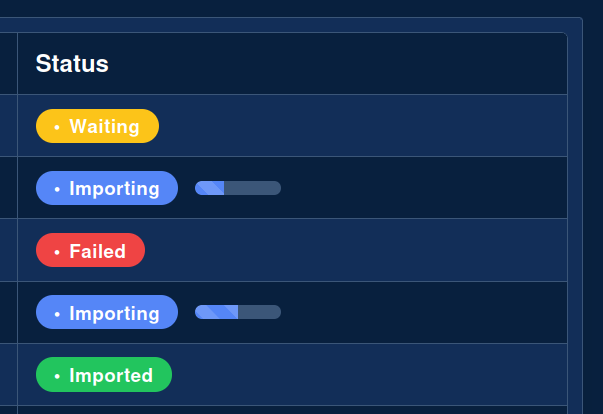
The import status is shown next to each file.
* **Uploading** is shown while the upload is in progress.
* **Importing** means the file is being handled by the plugin. If supported, the plugin will first import priority signals. They will first become available in cold storage and are automatically saved in hot storage as well.
* **Failed** means something went wrong. Click the "Failed" to see more details.
* **Waiting** means the file is waiting for resources to start importing. By default, two files can be imported in parallel, but this depends on your server configuration.
* **Imported** means that all data and metadata is processed
{% hint style="info" %}
Once your stream is set up, we encourage automating uploads using [`stream.push_file(...)`](https://docs.marpledata.com/docs/sdk/overview/python-sdk) in the [Python SDK](/docs/sdk/overview/python-sdk.md), or implement it another language using our REST API [Uploading files](/docs/marple-db/datastreams/uploading-files.md)
{% endhint %}
## Metadata
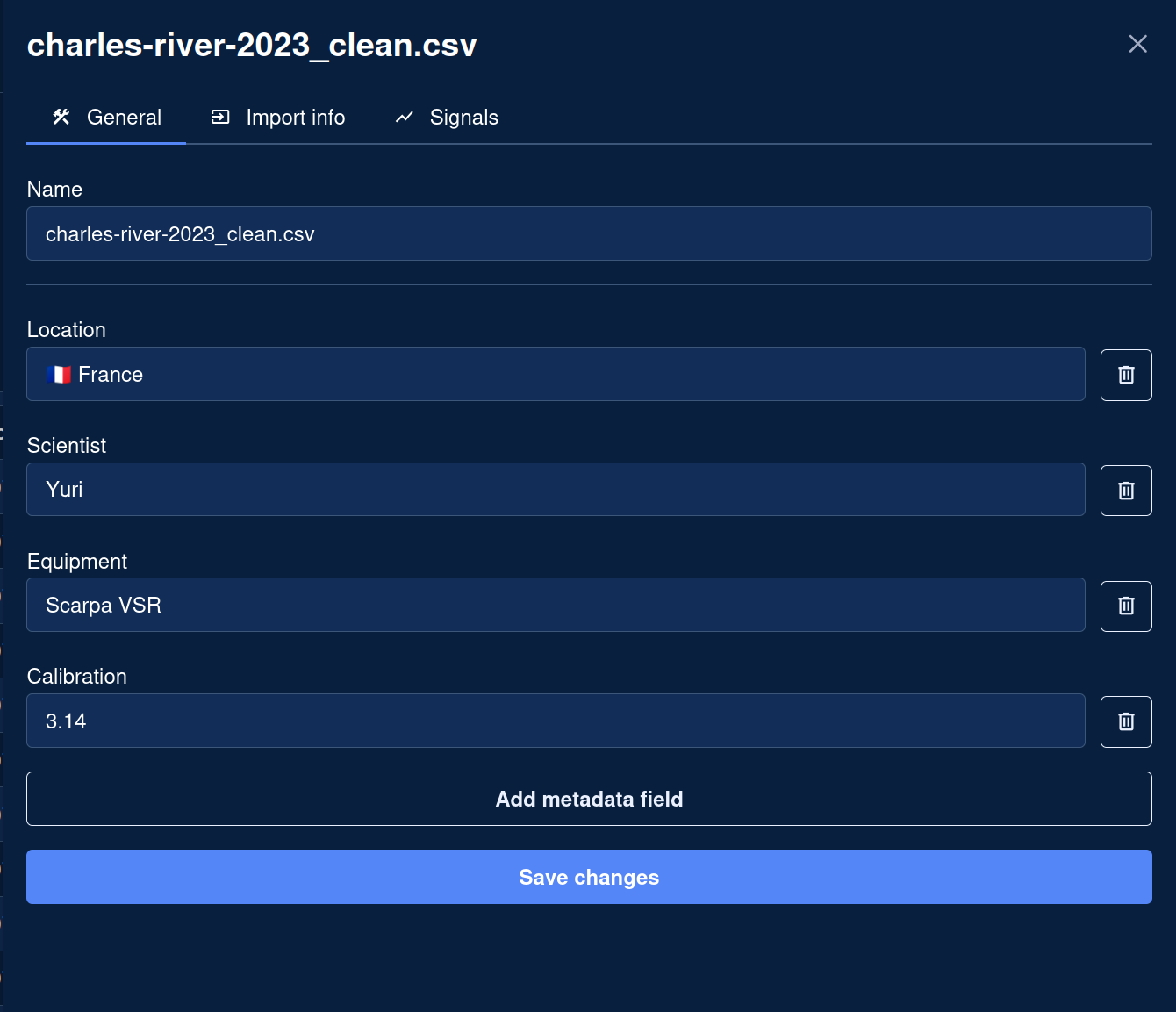
File metadata can be added both manually and automatically.
**Manually**
1. Manually for an individual file
2. By uploading a `.csv` file, with a column `dataset` and a column for each field you want to set. Example:
```
dataset,Location,Scientist
file1.csv,Italy,James
file2.csv,Spain,Hilde
file3.csv,Germany,Michel
```
{% hint style="warning" %}
Uploading a `.csv` file will overwrite existing metadata values if they were there before.
{% endhint %}
**Automatically**
* From the file upon importing (if the plugin supports it, like [MDF](/docs/marple-db/datastreams/supported-file-types.md#mdf)).
* Using our [SDK & API](/docs/sdk/overview.md).